|
Table Footer |
  
|
| Show/Hide Hidden Text |
|
Table Footer |
|
| Show/Hide Hidden Text |
 Table Footer is the bottom area of the Table. You can add a column in the Footer area, as similar to Table Header.
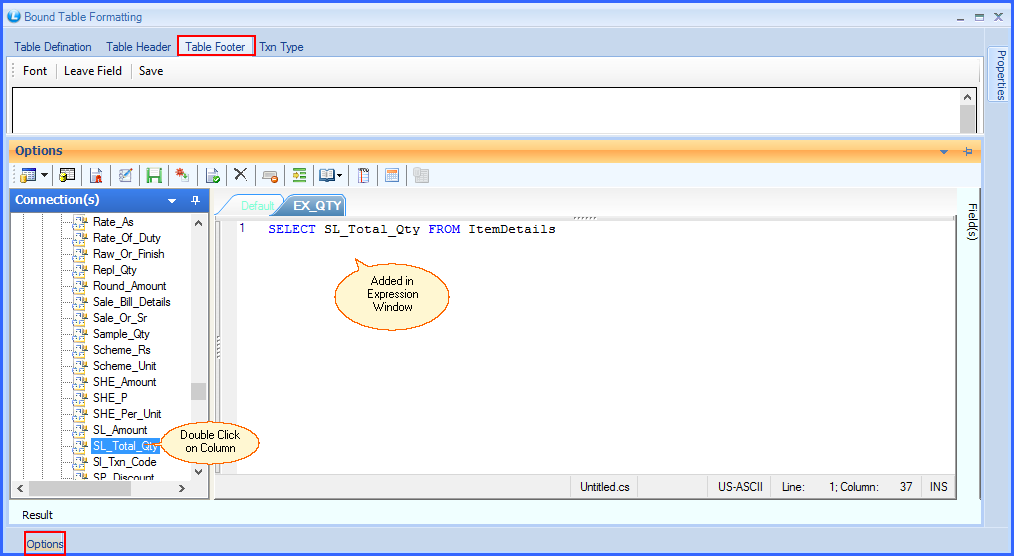
For Example: If you want to display column for Quantity in the Grid Table but its Total, in the Footer Area, Follow the steps mentioned below:
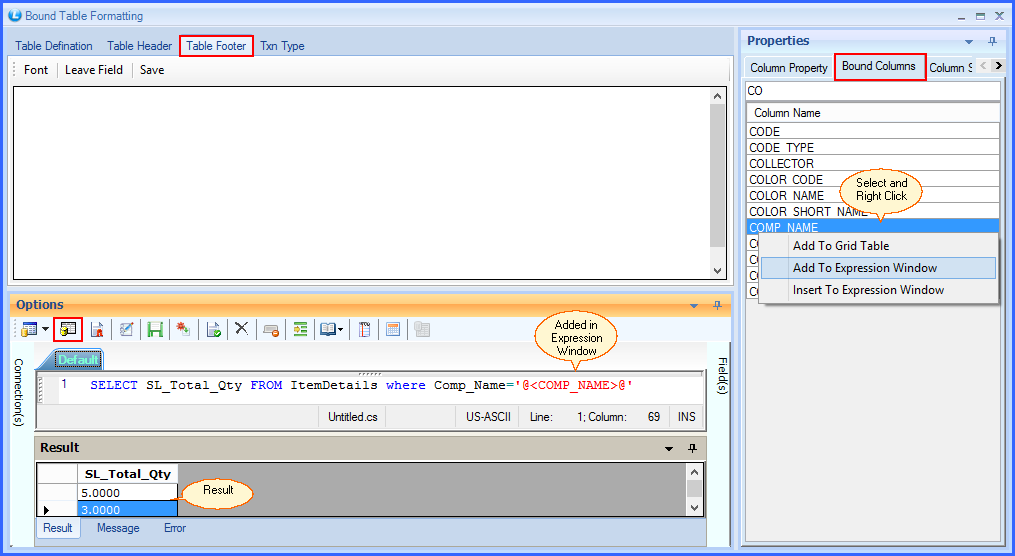
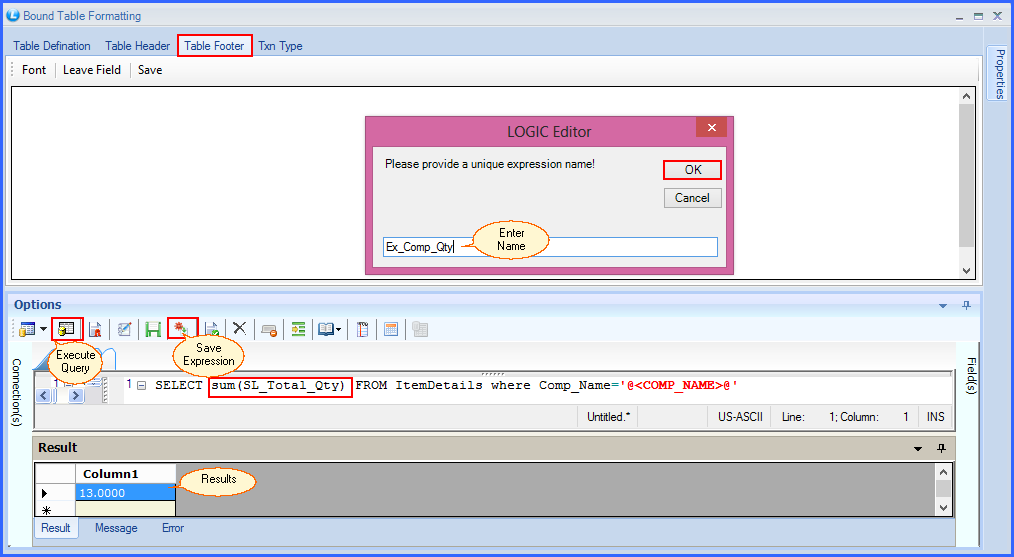
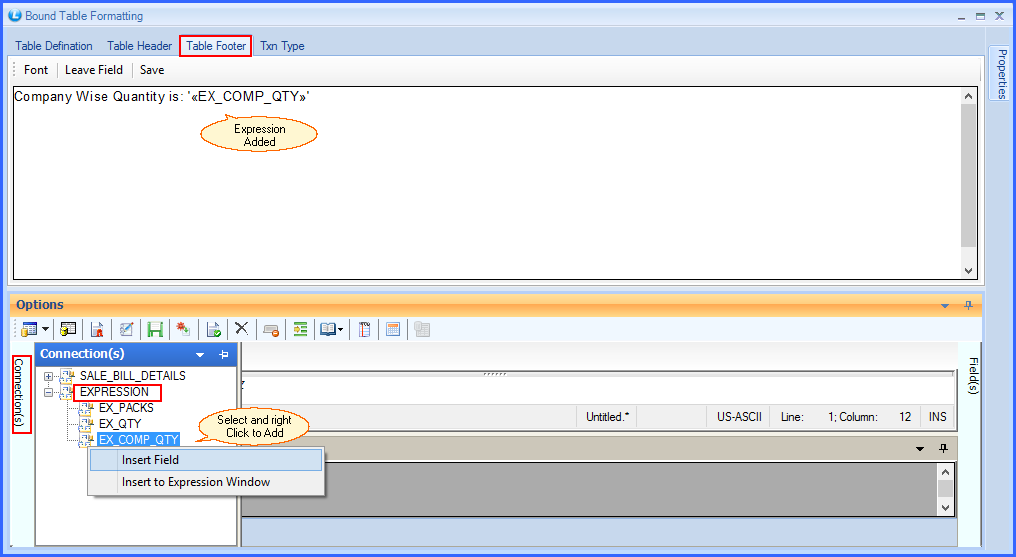
 Create an Expression: You can add a simple expression in your bound table by following steps:
|
Your expression will be added. You can change the style and size of 'Font' from the option available at the top. See the window below:
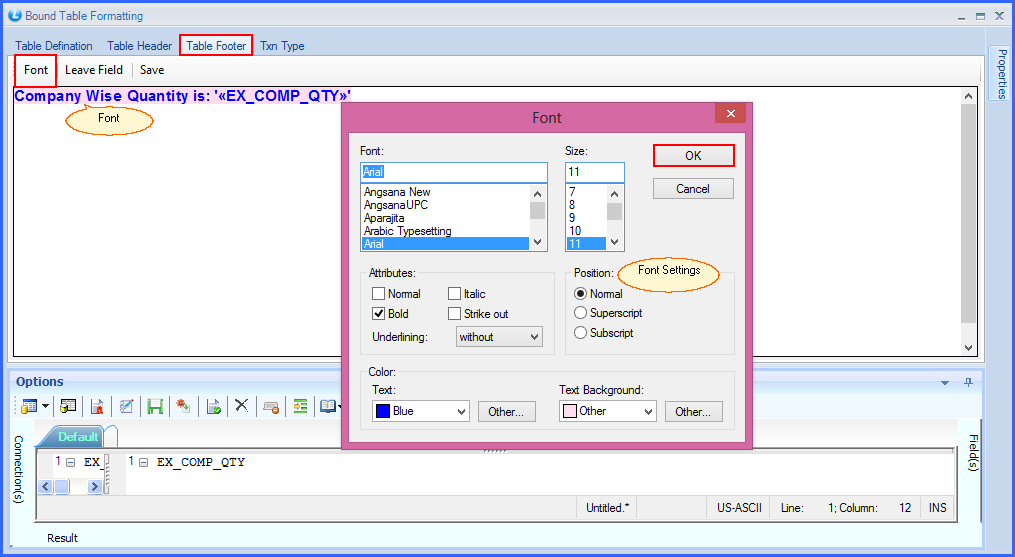
Fig 5. Font Settings
Click on 'Save' to save your settings.
|
You can See your Design by clicking on the Print Preview Option on Toolbar. |
Table Footer Preview:
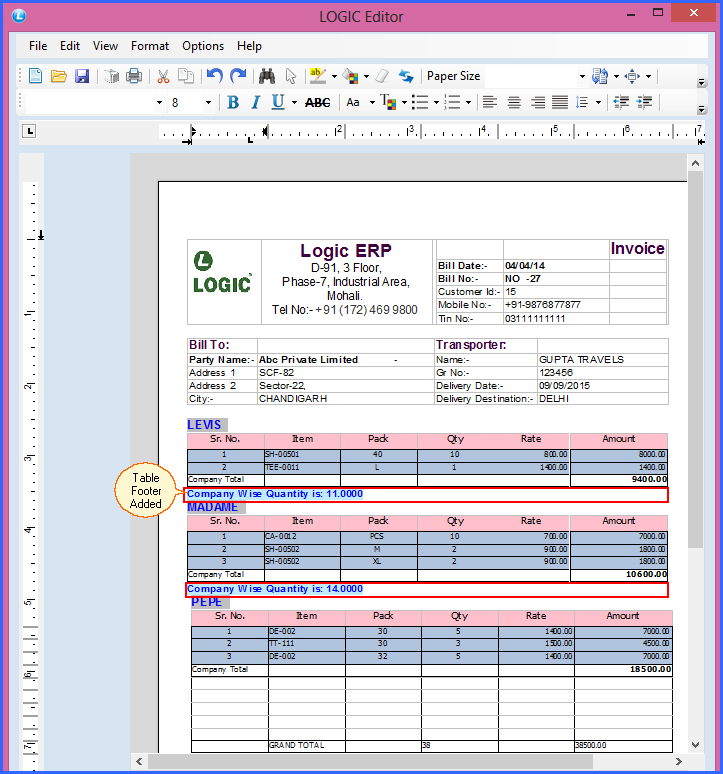
Fig 6. Table Footer Preview