How to Set Up Currency in ERP Software– Complete Step‑by‑Step Guide

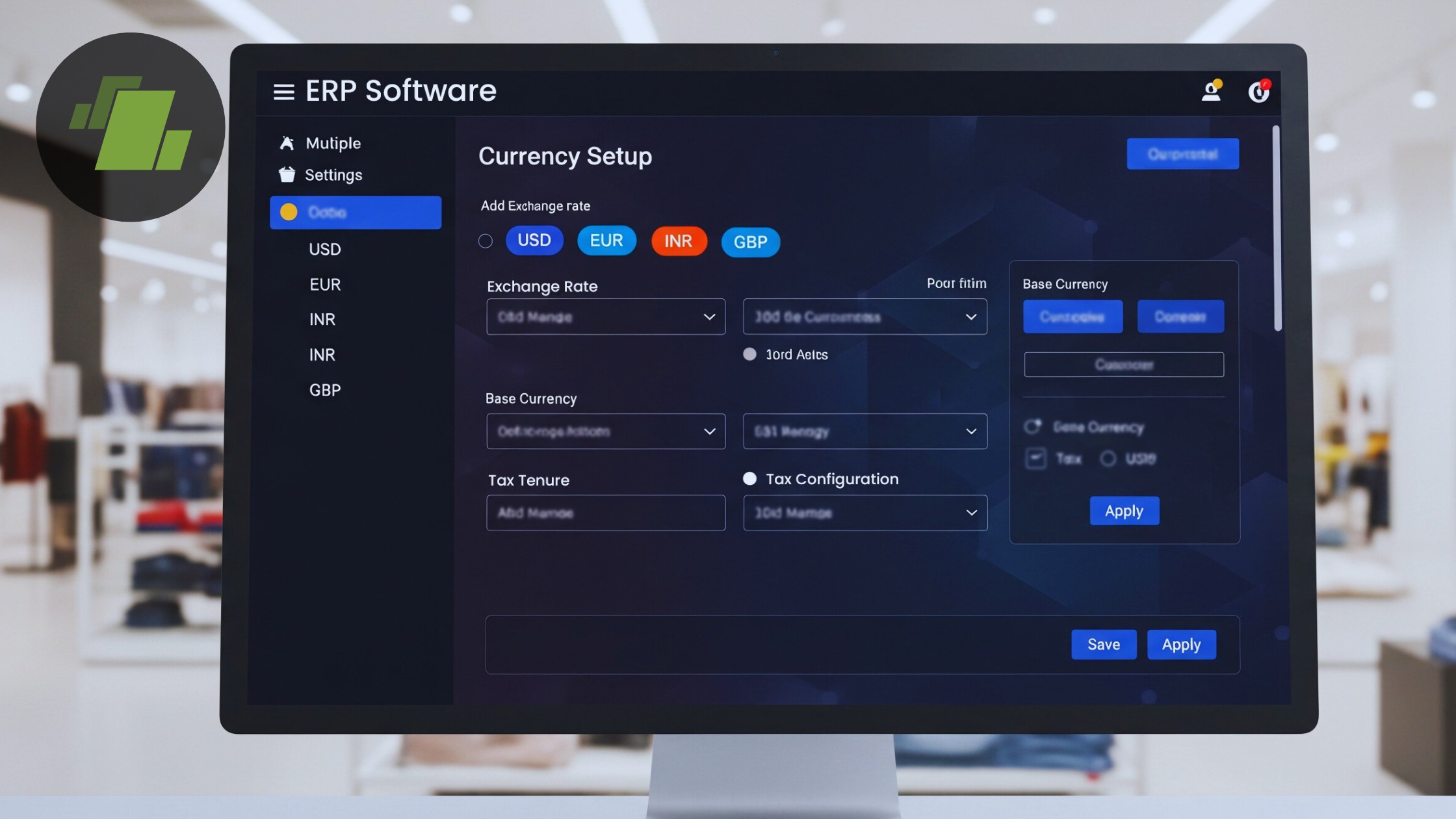
Managing multi currency transactions accurately is important for businesses that operate internationally or engage with customers, suppliers, and partners using foreign currencies. LOGIC ERP currency setup feature enables companies to define multiple currencies, assign exchange rates, and automate currency conversion during billing, ensuring accurate financials and seamless operations.
In this comprehensive guide, we’ll show you exactly how to configure currency and exchange rate setup in LOGIC ERP, how it works during sales billing, and the business benefits of multi currency support.
What is Currency Setup in LOGIC ERP?
Currency setup in LOGIC ERP allows businesses to define multiple currencies in the system, assign symbols, country names, descriptions, and exchange rates. This feature supports multi currency billing, ensuring that transactions in foreign currencies are recorded accurately and that conversion values are calculated automatically according to the defined exchange rate.
With this configuration, companies can:
- Record sales, purchases, and receipts in various currencies
- Apply exchange rate conversion automatically during billing
- Maintain accurate financial reporting and compliance
- Reduce manual errors in international transactions
Step by Step Guide to Set Up Currency in LOGIC ERP
Learn how to set up currency in LOGIC ERP with this step-by-step guide. Define currencies, configure exchange rates, and enable automatic conversion for seamless multi-currency transactions. Optimize your billing process and ensure accurate financial records for your business with LOGIC ERP.
Step 1: Open Currency Setup Window
- From the Main Menu, navigate to the Setup Module in LOGIC ERP.
- Under Other Account Details, click to open the Setup Currency window.
- In this screen, you can view the list of currencies already defined in LOGIC ERP.
- To add a new currency, enter the following details:
- Currency Name
- Currency Symbol
- Country Name
- Currency Description
- Sub currency Description
- Multiply Factor
- Save your configuration once all details are entered.
This step lays the foundation for multi currency support in LOGIC ERP, enabling you to enter and manage foreign currencies directly in the system.
Step 2: Define Exchange Rates
- From the Main Menu, open Setup Date wise Currency Exchange Rate.
- Select the Country and Currency you want to configure.
- Define the applicable date range and exchange rate type, then click Refresh.
- Enter the Exchange Rate and Conversion Value, then save.
Setting accurate exchange rates ensures financial calculations reflect current market rates and reduces discrepancies in your accounting and reporting.
Step 3: Enable Exchange Rate Field in Sales Billing
- Open the Sales Bill screen in LOGIC ERP.
- Before creating a transaction, navigate to Sales Voucher Configuration.
- Select the billing Series, then go to Other Settings 1.
- Open Column Locks and enable the Exchange Rate Column.
- Save your updated voucher configuration.
Once enabled, the exchange rate field will appear in the sales voucher, allowing you to select the appropriate currency for each sales transaction.
Step 4: Use Multi Currency During Sales Transactions
- Initiate a new sales transaction in the Sales Bill window.
- Select the required currency from the exchange rate field dropdown.
- Enter the items and quantities for billing.
- As you add items to the sales bill, LOGIC ERP will automatically apply the currency conversion rate based on your earlier setup.
- To verify the automatic conversion values, use View Totals, you’ll see a clear breakdown of currency conversions in your totals view.
This automation eliminates the need for manual calculations and ensures the correct conversion value is applied for every transaction.
Business Benefits of Currency Setup in LOGIC ERP
Implementing multi currency support in LOGIC ERP is highly beneficial for Indian businesses involved in global trade or foreign currency transactions. Here’s how it helps:
1. Accurate Multi Currency Transactions
LOGIC ERP’s currency setup ensures that all foreign exchange transactions are recorded with the correct rates, reducing manual errors and ensuring financial accuracy across operations.
2. Automated Exchange Rate Application
Once the exchange rate configuration is complete, conversion occurs automatically during billing. This reduces operational overhead and speeds up transaction processing, making it simpler for sales teams to handle international invoices.
3. Improved Financial Reporting
With multi currency support, businesses can maintain consolidated financial records and generate accurate reports, even when transactions occur in multiple currencies – an essential function for modern ERP systems supporting global operations.
4. Compliance and Audit Readiness
Managing exchange rate history and currency configurations directly within LOGIC ERP helps businesses stay compliant with accounting standards and simplifies audits, especially when dealing with foreign currency transactions.
5. Enhanced Business Flexibility
Whether dealing with customers in the UAE, Europe, or the USA, multi currency capabilities give Indian retailers and distributors greater flexibility in pricing, reporting, and transacting across borders.
Conclusion
Setting up currency and exchange rates in LOGIC ERP empowers Indian businesses to handle international transactions with confidence. Whether you’re a retail store, distributor, or exporter, multi currency billing in LOGIC ERP ensures accurate financials, faster transaction processing, and automated currency conversion, all essential in today’s global marketplace.
By following this step by step guide, you’ll be able to configure currency settings efficiently and leverage LOGIC ERP’s powerful multi currency capabilities to improve your business operations.

Call at +91-73411-41176 or send us an email at sales@logicerp.com to book a free demo for LOGIC ERP software today!
Frequently Asked Questions (FAQs)
Q1. What is the currency setup in LOGIC ERP?
Currency setup in LOGIC ERP enables businesses to define multiple currencies, assign symbols and exchange rates, and use them in transactions like sales billing and purchases.
Q2. How does multi currency billing work in LOGIC ERP?
After enabling the exchange rate column, LOGIC ERP automatically applies the correct conversion rate during sales, ensuring accurate pricing and financial records.
Q3. Can LOGIC ERP handle multiple exchange rate date ranges?
Yes, you can define date ranges and types for exchange rates, so conversion applies according to the schedule and business needs.
Q4. Is currency conversion automatic during billing?
Yes, once configured, the system automatically converts values during sales transactions based on your exchange rate settings.
Q5. Why is multi currency support important for Indian exporters?
Multi currency support allows Indian exporters to transact in global currencies, streamline financial operations, and maintain compliance with international accounting standards.

Author
Sharanjit Ghuman
Director of Communications | LOGIC ERP Solutions Pvt. Ltd.
Leading and managing the company’s internal and external communication strategies and working closely with senior leadership to develop and execute communication plans.