How to Generate Agent/Salesman Wise Sales Report in LOGIC ERP

Introduction
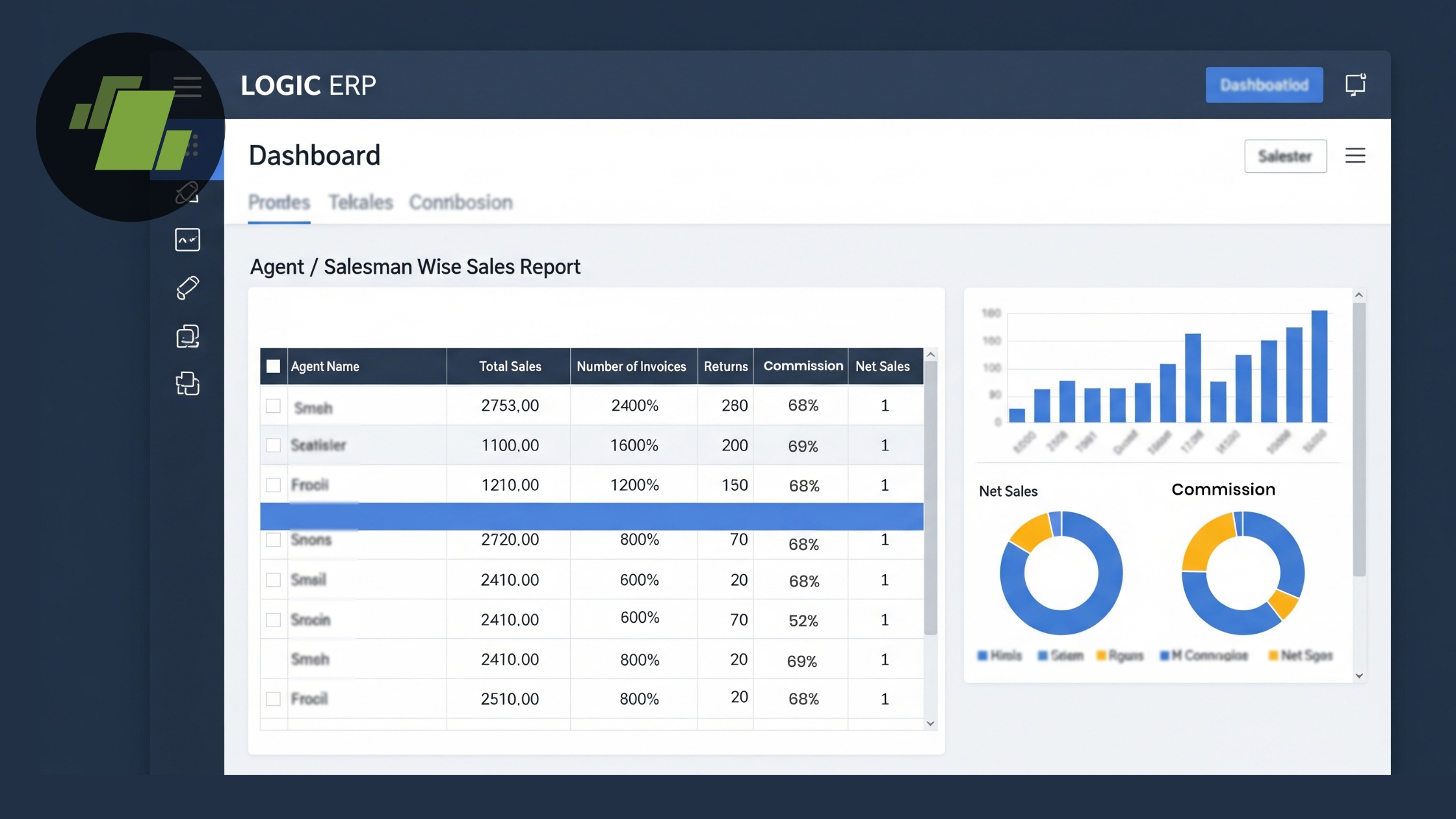
In any business, tracking sales performance by agents or salesmen is important for informed decision-making, performance evaluation, and incentive calculation. LOGIC ERP provides an advanced reporting system that allows you to generate agent-wise sales reports, giving a detailed overview of each salesperson’s contributions.
This guide will walk you through step-by-step configuration, customization, and report generation in LOGIC ERP. Whether you are a business owner, sales manager, or ERP administrator, this blog will help you understand agent-wise sales data for better operational efficiency.
Why Generate Agent/Salesman Wise Sales Reports?
Generating agent-wise sales reports helps businesses:
- Evaluate individual sales performance and productivity.
- Identify top-performing agents and lagging performers.
- Track billing history, item-wise sales, and quantity sold.
- Make data-driven decisions for incentives and targets.
- Monitor performance across regions or product categories.
Step-by-Step Guide to Configure Agent/Salesman Wise Sales Report
Step 1: Navigate to Reports Section
- Log in to Logic ERP.
- Go to Reports & Queries > Agent Reports.
- Select Agent + Customer Wise Sales.
Step 2: Create a New Report Configuration
- Click on Configuration to create a new report.
- Provide a unique report configuration name.
Step 3: Select Columns to Display
- Open Print Options > Print Columns.
- Select the columns you want to display (e.g., Agent Name, Bill Number, Bill Amount, Item Details, Quantity).
- Rearrange column order using arrow keys.
- Save the changes.
Step 4: Configure Totals
- Go to the Totals Section.
- Enable Agent Totals and Grand Total for overall summary.
Step 5: Set Report Options
- Under Report Options, configure:
- Report on: Agent + Bill
- Report type: Bill Wise
- Report view: Lot Wise
- Report sorting: Item + Size Wise
- Agent filter: Bill Wise
Step 6: Save and Generate Report
- Save the configuration.
- Select the newly created report from the Configuration List.
- Click Generate Report.
Step 7: Advanced Configuration in Sales Register Cross Tab
- Open Configuration Window > Define Report Configuration Name.
- In Report Options > Report Consolidation, enable:
- Bill Number
- Agent Item Details
- Item Consolidation (Item Name, Pack, Shade)
- Configure totals: Agent Wise + Grand Total
- Arrange columns to your preference using arrow keys.
- Enable transaction details (display by value or quantity).
- Save configuration.
Step 8: Customize Columns
- By default, all columns are visible.
- Click Setup Column Attributes to select only the required fields:
- Bill Agent Name
- Bill Number & Date
- Bill Amount
- Total Quantity
- Item Name, Pack, Size, Shade
- Gross & Net Sale Amount
- Rearrange columns using arrow keys and save.
Step 9: Refresh Report
- Press F2 to refresh the report.
- The resulting report shows agent-wise detailed sales data, including billing history for a specific date range.
Benefits of Agent/Salesman Wise Sales Reports
- Provides clear visibility into each agent’s performance.
- Helps in accurate incentive calculation.
- Facilitates strategic decision-making for inventory and sales planning.
- Tracks item-wise and bill-wise transactions for accountability.
- Easy to integrate with cross-tab reports for holistic analysis.
Conclusion
Generating agent/salesman wise sales reports in LOGIC ERP allows businesses to analyze performance, track sales data, and make informed decisions. By following this step-by-step guide, you can create customized reports with item-level details, totals, and transaction history, ensuring accuracy, transparency, and operational efficiency.
Investing time in proper configuration not only improves reporting but also helps businesses optimize sales strategy and reward high-performing agents effectively.
Call at +91-73411-41176 or send us an email at sales@logicerp.com to book a free demo today!
Frequently Asked Questions (FAQs)
Q1. Can I generate reports for a specific date range?
Yes, you can filter by date to see detailed agent-wise sales for any selected period.
Q2. Can I export the report to Excel or PDF?
Logic ERP allows exporting reports for sharing or further analysis.
Q3. Can multiple users generate this report simultaneously?
Yes, provided they have the necessary ERP access rights.
Q4. How do I track both agent totals and grand totals?
Enable Agent Totals and Grand Total in the Totals Section during configuration.
Q5. Can I rearrange the columns in the report?
Yes, use the arrow keys to reorder columns before saving the configuration.
Q6. Is it possible to include transaction-level details?
Yes, enable Transaction Details in the report options to display by value or quantity.

Author
Sharanjit Ghuman
Director of Communications | LOGIC ERP Solutions Pvt. Ltd.
Leading and managing the company’s internal and external communication strategies and working closely with senior leadership to develop and execute communication plans.