How to Configure Expiry Stock Report in LOGIC ERP – Step-by-Step Guide

Introduction
Managing expired inventory is one of the most common challenges for retail, pharmaceutical, FMCG, and distribution businesses. Without proper tracking, expired stock can lead to financial losses, compliance issues, and poor customer experience.
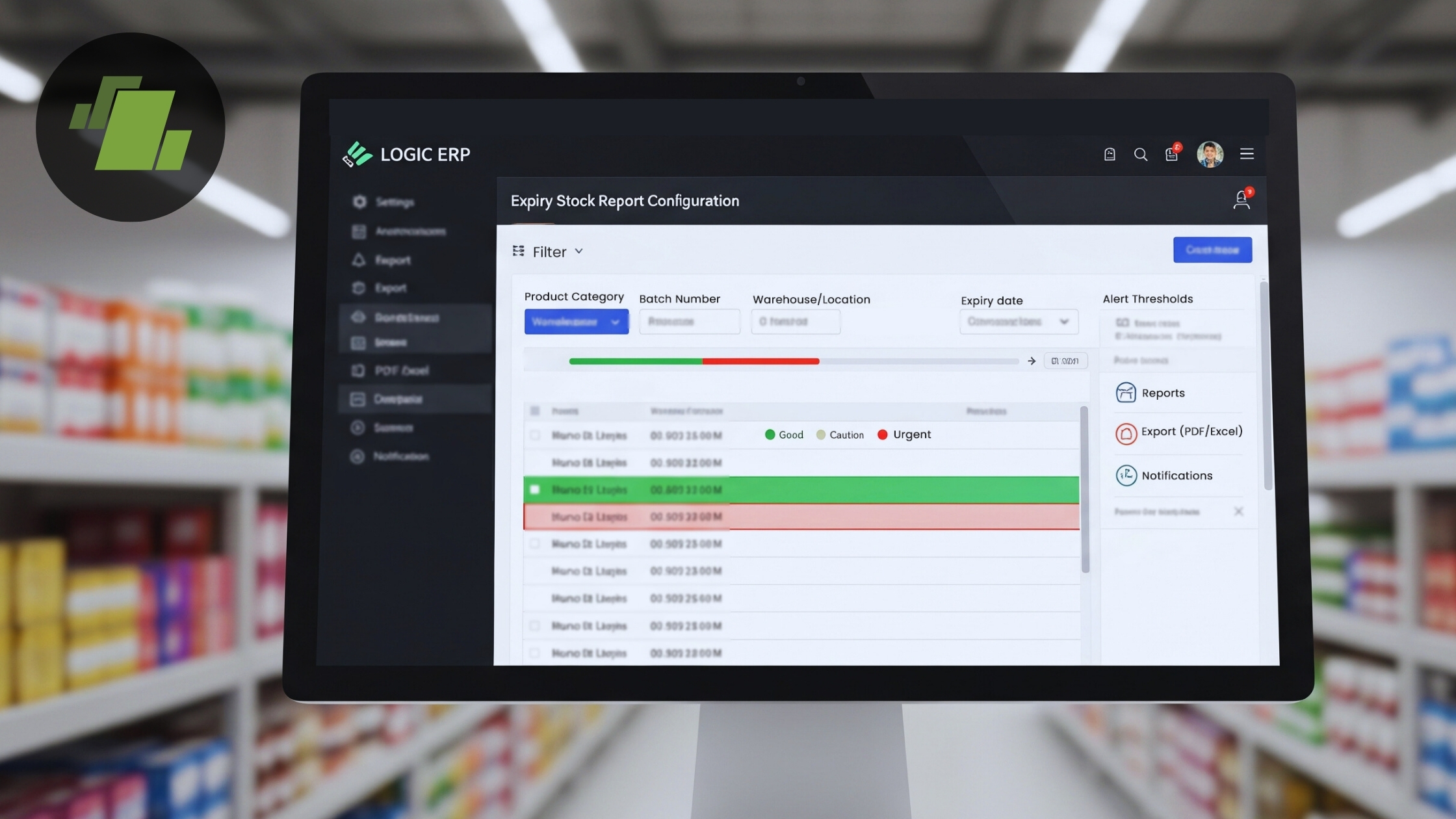
LOGIC ERP’s Expiry Stock Report provides a complete solution to track, monitor, and clear expired or near-expiry stock efficiently. This guide explains how to configure the Expiry Stock Report in LOGIC ERP, step by step, so businesses can maintain accurate inventory control and reduce wastage.
What is an Expiry Stock Report in LOGIC ERP?
An Expiry Stock Report in LOGIC ERP helps pharma stores, supermarkets, FMCG distributors, warehouses, and multi-store retail chains:
- Track item-wise and batch-wise expiry dates
- Identify expired and near-expiry stock
- View closing stock against expiry timelines
- Take timely actions such as clearance, returns, or write-offs
Step-by-Step Process to Configure Expiry Stock Report in LOGIC ERP
Configure the Expiry Stock Report in LOGIC ERP to track batch-wise and item-wise expiry dates effortlessly. This step-by-step process helps businesses identify expired or near-expiry stock and take timely corrective actions. With accurate expiry tracking, you can reduce inventory loss, maintain compliance, and improve overall stock management efficiency.
Step 1: Navigate to Stock Query Report
To begin configuring the expiry report:
- Go to the Main Menu
- Navigate to Reports and Queries
- Click on Stock Reports
- Open the Stock Query Report
This report acts as the base for configuring expiry-related stock data.
Step 2: Create a New Report Configuration
- Click on Configuration
- Create a New Report Setup
- Assign a meaningful Configuration Name (for example: “Expiry Stock Report”)
This configuration allows you to customize how expiry stock data is displayed.
Step 3: Select Required Columns for Expiry Tracking
Under Print Options:
- Click on Print Columns
- Select the following essential columns:
- Item Name
- Pack Name
- Lot Number
- Expiry Date
- Closing Stock
These columns ensure complete visibility of stock items along with their batch and expiry details.
Customization Options
- Press the Space key to rename column headings if required
- Use the Arrow keys to rearrange the column order
- Save the changes after selection
Step 4: Configure Totals Display
- Navigate to the Totals section
- Choose your preferred options for displaying totals
This helps summarize stock quantities clearly for better reporting and decision-making.
Step 5: Set Item View and Sorting Options
Under Other Options:
- Set Item View to Lot
- Set Item Sorting to Item Name
- Apply the Transaction Filter as Transacted
This ensures the report displays batch-wise stock with only relevant transacted items.
Step 6: Enable Expiry Report Option
- Go to Other Options – 2
- Enable the Expiry Report option
- Save the configuration once all settings are completed
This step activates expiry-based stock reporting in LOGIC ERP.
Step 7: Generate the Expiry Stock Report
- Select the newly created Report Configuration
- Click Create Report
The system will generate a report displaying:
- Closing stock
- Expiry dates
- Batch-wise inventory details
Step 8: Filter Stock by Expiry Date Range
To view expired or near-expiry stock:
- Close the report
- In the Header Section, define:
- Expiry Date From
- Expiry Date To
- Click Create
The report will clearly display items and associated batches whose stock has expired or falls within the selected date range.

Business Benefits of Using Expiry Stock Report in LOGIC ERP
1. Accurate Expiry Tracking
LOGIC ERP allows businesses to track batch-wise expiry dates in real time. This ensures full visibility of expiry-sensitive inventory, helping pharmacies, FMCG distributors, and retail chains maintain fresh stock and prevent stockouts.
2. Reduced Inventory Loss
With timely alerts on expired or near-expiry products, businesses can take immediate corrective actions such as clearance sales, returns, or write-offs. This minimizes financial losses and optimizes inventory turnover.
3. Faster Decision-Making
Expiry Stock Reports provide a clear overview of closing stock with detailed expiry information. Managers can make informed procurement and sales decisions, improving overall operational efficiency.
4. Better Compliance & Audits
Maintain accurate records of batch-wise stock and expiry dates for regulatory compliance. LOGIC ERP simplifies audits, ensuring businesses meet industry standards and government regulations effortlessly.
5. Improved Customer Trust & Satisfaction
By avoiding the sale of expired or near-expiry products, businesses can uphold quality standards, enhance customer safety, and build stronger trust with clients and consumers.
6. Optimized Stock Management Across Multiple Locations
For multi-branch retail chains and warehouses, LOGIC ERP provides centralized expiry tracking, ensuring consistency in stock monitoring and reducing the risk of losses across locations.
7. Enhanced Forecasting & Procurement Planning
Analyzing expiry trends helps businesses plan procurement more effectively. Reduce overstocking or understocking of expiry-sensitive items with predictive insights from the report.
8. Streamlined Warehouse Operations
Batch-wise expiry monitoring simplifies warehouse management. Staff can prioritize clearance of near-expiry items, optimize shelf space, and improve stock rotation.
9. FMCG, Pharmaceutical, and Perishable Goods Businesses
The Expiry Stock Report supports industries where product freshness and expiration tracking are key to operational success. Ensure timely stock clearance, minimize waste, and maintain uninterrupted supply chains.
10. Boosted Profitability and Operational Efficiency
Reducing expired inventory and improving stock utilization leads to higher profitability. Businesses can reduce losses, streamline operations, and improve ROI with actionable expiry data.
Who Should Use the Expiry Stock Report?
- Pharmacies and medical stores
- Supermarkets and grocery stores
- FMCG distributors
- Warehouses and stockists
- Multi-branch retail businesses
Conclusion
Configuring the Expiry Stock Report in LOGIC ERP allows businesses to gain complete control over expiry-sensitive inventory. With batch-wise visibility, customizable filters, and accurate closing stock data, businesses can reduce losses, maintain compliance, and ensure product quality. By following this step-by-step configuration process, retailers and distributors can proactively manage expired stock and improve overall inventory efficiency.
Call at +91-73411-41176 or send us an email at sales@logicerp.com to book a free demo today!
Frequently Asked Questions (FAQs)
1. What is an Expiry Stock Report in ERP?
An Expiry Stock Report in ERP is a report that tracks batch-wise and item-wise expiry dates of inventory. It helps businesses identify expired or near-expiry stock, view closing stock details, and take timely actions such as clearance, returns, or write-offs. This is essential for pharmacies, supermarkets, FMCG distributors, and warehouses.
2. Why is configuring an Expiry Stock Report important in LOGIC ERP?
Configuring an Expiry Stock Report ensures accurate tracking of expiry-sensitive products. It minimizes inventory losses, improves compliance, streamlines stock audits, and enhances customer trust by preventing the sale of expired products.
3. How can I configure an Expiry Stock Report in LOGIC ERP?
To configure the Expiry Stock Report:
- Go to Main Menu > Reports and Queries > Stock Reports > Stock Query Report.
- Click Configuration and create a new setup.
- Select columns like Item Name, Lot Number, Expiry Date, Closing Stock.
- Configure totals, sorting, and filters.
- Enable the Expiry Report option under Other Options – 2.
- Save configuration and generate the report.
4. Can I filter the Expiry Stock Report by date in LOGIC ERP?
Yes. You can filter stock by expiry date range. Enter the Expiry Date From and Expiry Date To in the report header, then click Create Report. This displays only expired or near-expiry stock for the selected date range.
5. Who should use the Expiry Stock Report in LOGIC ERP?
The Expiry Stock Report is the best for:
- Pharmacies and medical stores
- Supermarkets and grocery stores
- FMCG distributors
- Warehouses and stockists
- Multi-branch retail businesses
6. What columns are essential for an Expiry Stock Report in LOGIC ERP?
Key columns to include are:
- Item Name
- Pack Name
- Lot Number
- Expiry Date
- Closing Stock
These ensure full visibility of batch-wise stock and expiry dates.
7. How does the Expiry Stock Report reduce inventory loss?
By tracking expired and near-expiry stock, businesses can take timely actions like clearance, returns, or write-offs. This prevents financial losses due to unsellable inventory and ensures that only quality products reach customers.
8. Can multiple branches use a single Expiry Stock Report configuration in LOGIC ERP?
Yes. Multi-branch retail businesses can use a centralized Expiry Stock Report configuration to monitor batch-wise expiry stock across all stores, ensuring consistent inventory management and compliance.
9. Does LOGIC ERP support batch-wise expiry tracking for pharmaceuticals and FMCG products?
Absolutely. LOGIC ERP’s Expiry Stock Report tracks batch-wise inventory with expiry dates, making it ideal for pharmaceutical, FMCG, and perishable goods businesses that require precise stock control.
10. How does the Expiry Stock Report help in audits and compliance?
The report provides detailed records of batch-wise stock, expiry dates, and closing stock quantities. This ensures that businesses maintain accurate records for regulatory audits and compliance requirements.

Author
Sharanjit Ghuman
Director of Communications | LOGIC ERP Solutions Pvt. Ltd.
Leading and managing the company’s internal and external communication strategies and working closely with senior leadership to develop and execute communication plans.