How to Fix Place of Supply (POS) | Wise Tax Validation Errors in GSTR-1 in LOGIC ERP (Complete Guide)

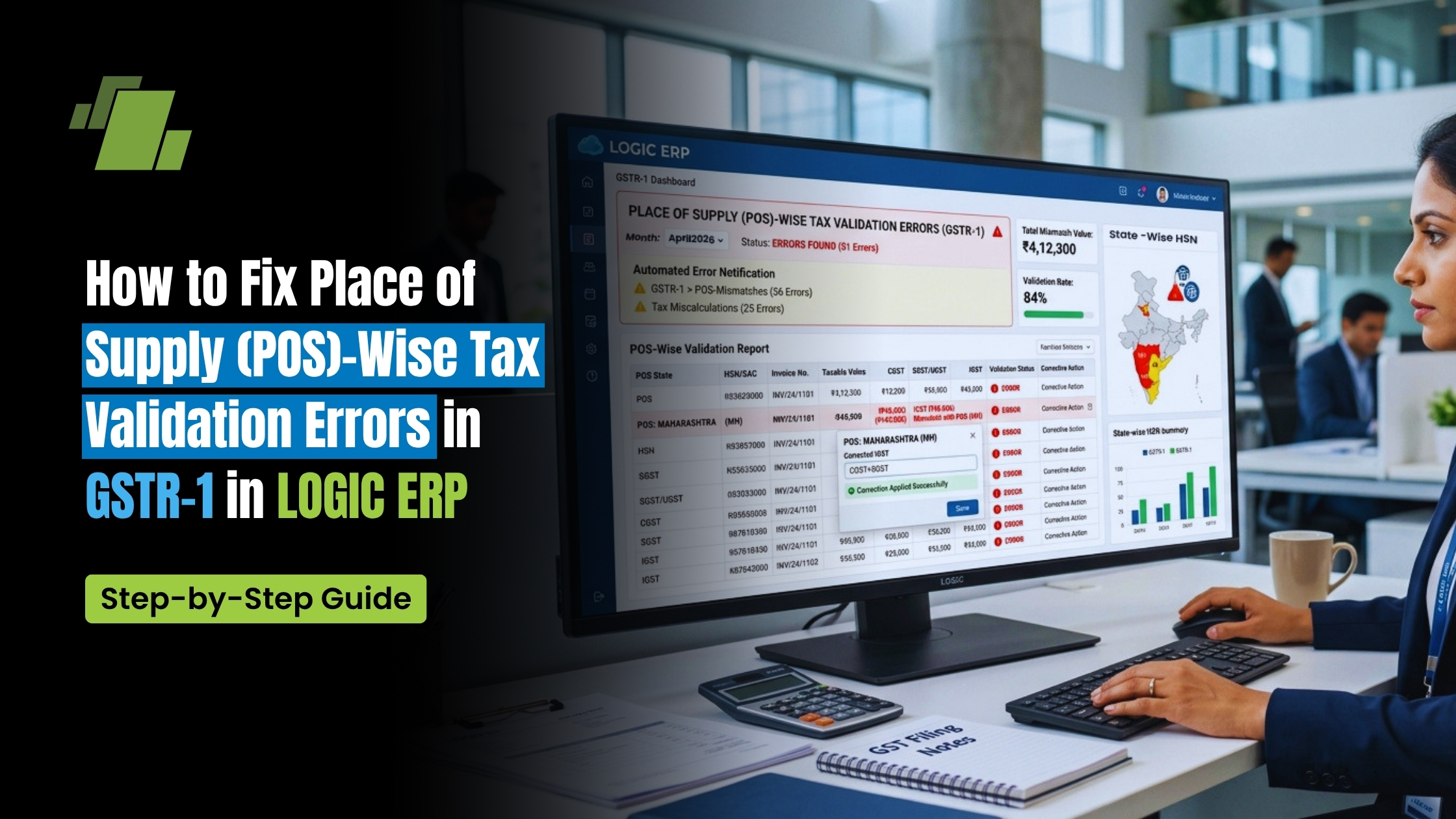
Errors related to Place of Supply (POS) and incorrect tax selection are among the most common issues faced while generating GSTR-1 returns. These errors can delay filing, cause compliance risks, and require last-minute corrections.
This comprehensive guide explains how to identify, fix, and prevent POS-wise tax validation errors in GSTR-1 using LOGIC ERP, ensuring accurate and compliant GST return filing.
Contact Us
Free Demo Request
What is POS-Wise Tax Validation Error in GSTR-1?
A POS (Place of Supply) validation error occurs when the tax applied in an invoice does not match GST rules based on the nature of the transaction.
Common Scenario:
For export transactions, GST rules require:
- Only IGST should be applied
However, if:
- CGST + SGST is used instead of IGST
The system throws an error like:
“CGST/SGST tax is not allowed in export entries. Only IGST is allowed.”
Why This Error Occurs
This issue typically arises due to:
- Incorrect tax region selection in the sales invoice
- Misconfigured party ledger (export customer)
- Manual billing errors during invoice creation
- Lack of default GST setup for export transactions
Step-by-Step: Fix POS-Wise Tax Validation Errors in LOGIC ERP
Step 1: Generate GSTR-1 Return
- Go to GST Returns module
- Select GSTR-1 as return type
- Choose the relevant return period
- Click on Generate
If there is an issue, the system will display an Invalid Data Error
Step 2: Identify the Error
- Go to the Export section
- Look for a red flag icon next to the affected invoice
Click or review the error message:
“CGST/SGST tax is not allowed in export entries. Only IGST is allowed.”
You can also check:
- GSTR Error Details section
- It will highlight POS-wise validation errors
Step 3: Open and Correct the Export Invoice
- Click on the Invoice Number from the error list
- The respective sales bill will open
Make the required correction:
- Change Tax Region from:
- CGST/SGST → IGST
Step 4: Unlock and Save (If Required)
If the Save button is locked:
- Turn off Num Lock on your keyboard
- Press Alt + Insert to unlock
Then:
- Click Save to update the invoice
Step 5: Regenerate GSTR-1
- Close the invoice screen
- Return to GSTR-1 module
- Click Generate again
Result:
- The red flag turns green
- Error is resolved successfully
Step 6: Verify Error Resolution
- Check GSTR Error Details section
- Confirm that:
- POS-wise error count = 0
This ensures your data is now GST-compliant
Prevent Future POS Errors (Recommended Setup)
To avoid repeated errors, configure default tax settings:
Steps:
- Go to Setup → New Account
- Select the Export Party Account
- Set:
- Tax Region = IGST (Default)
- Save changes
Benefit:
All future export invoices will:
- Automatically apply correct tax
- Eliminate manual errors
- Ensure compliance from the start
Export and Upload GSTR-1 Data
Once validation is complete:
Step 1: Export Data
- Go to GSTR-1 screen
- Choose:
- Export to Excel OR
- Generate JSON file
- Click Upload / Export
Step 2: Import in GST Offline Tool
- Open GST Offline Utility Tool
- Click Proceed
- Select Import Excel
- Choose exported file
- Click Yes
Step 3: Generate Final File
- Review summary
- Click Generate File
Your return is now ready for upload to the GST portal.
Best Practices for GST Compliance in LOGIC ERP
- Always verify tax region before saving invoices
- Use default IGST setup for export parties
- Regularly review GSTR error reports
- Avoid manual overrides without validation
- Train billing teams on GST rules for interstate/export sales
Common Mistakes to Avoid
- Applying CGST/SGST on export invoices
- Ignoring red flag errors before filing
- Not regenerating GSTR-1 after corrections
- Missing default configuration for export customers
Business Impact of Fixing POS Errors
Correcting POS-wise validation errors helps:
- Ensure accurate GST filing
- Avoid penalties and compliance issues
- Save time during return preparation
- Improve data accuracy and reporting
- Enable smooth JSON upload without rejection
Conclusion
Fixing Place of Supply (POS) | wise tax validation errors in GSTR-1 is essential for accurate GST compliance. With LOGIC ERP, businesses can quickly identify errors, correct tax mismatches, and prevent future issues through smart configuration.
By following the steps outlined above, you can ensure:
- Error-free GST returns
- Faster filing process
- Complete compliance with GST regulations
Call at +91-73411-41176/75 or send us an email at sales@logicerp.com to book a free demo today!
Frequently Asked Questions (FAQs)
Q1. Why does the system show IGST-only error for export invoices?
Because GST rules mandate IGST for export transactions; CGST/SGST is not allowed.
Q2. How can I quickly identify POS errors in LOGIC ERP?
Look for the red flag icon in the Export section and review GSTR Error Details.
Q3. Do I need to regenerate GSTR-1 after correction?
Yes, regenerating is necessary to update and validate corrected data.
Q4. How can I avoid this error in the future?
Set the default tax region as IGST in the export party ledger.

Author
Gurbir Singh
Co-founder & Managing Director | LOGIC ERP Solutions Pvt. Ltd.
With 30+ years of experience in the tech industry, I took the helm of technology & product development, ensuring LOGIC ERP’s continuous innovation & leadership in the evolving tech landscape.