How to Customize Sale Bill Narration in LOGIC ERP (Step-by-Step Guide)

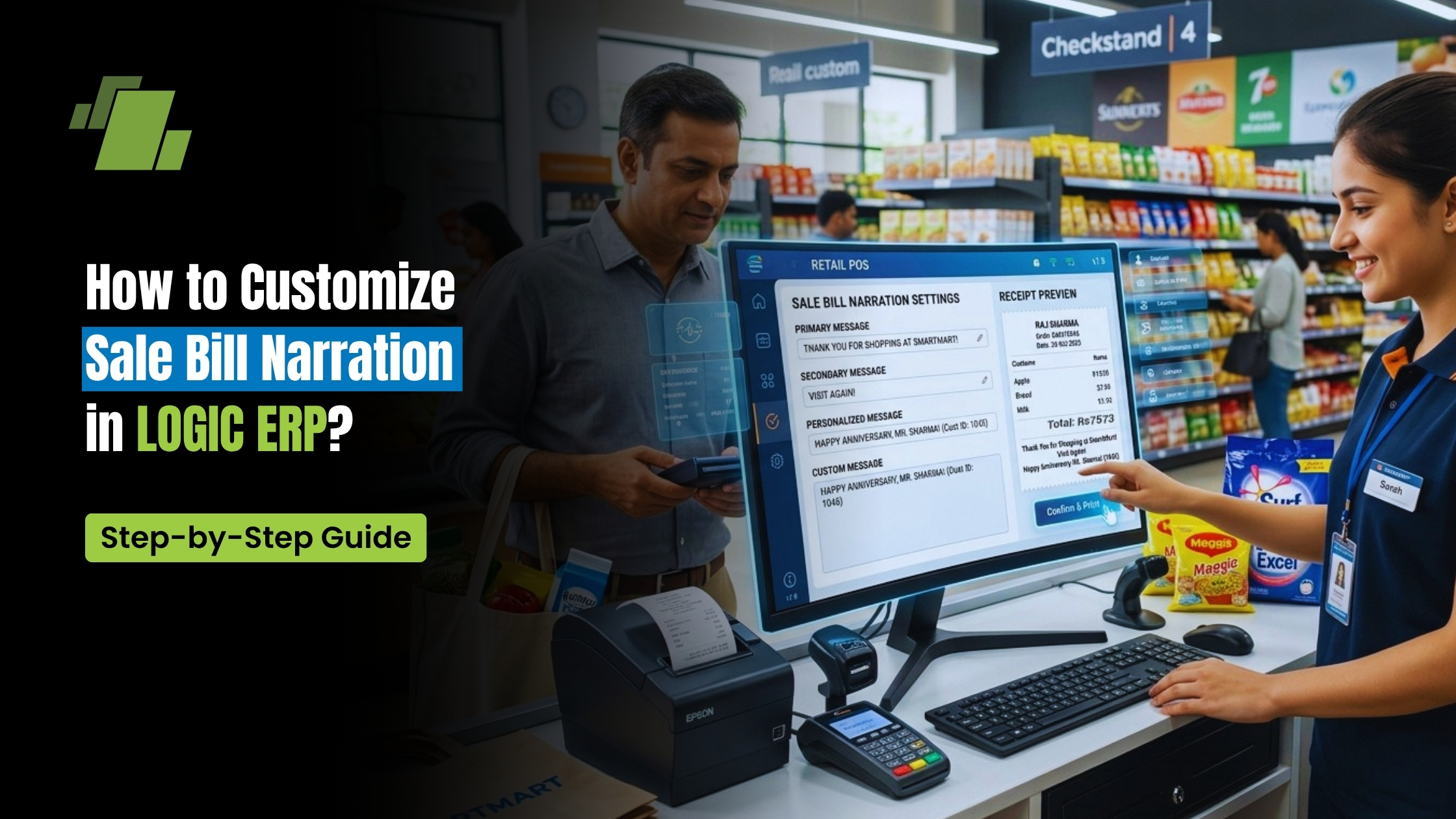
Customizing the Sale Bill Narration in LOGIC ERP helps businesses maintain clear, consistent, and meaningful transaction records in their ledger. Whether you want automated narration, remark-based entries, or dynamic formulas, this guide explains everything in a structured and practical way.
This tutorial is especially useful for retailers, distributors, accountants, and finance teams who rely on accurate ledger narration for reporting, audits, and reconciliation.
Contact Us
Free Demo Request
What is Sale Bill Narration in LOGIC ERP?
Sale Bill Narration refers to the descriptive text automatically or manually recorded against each sales transaction in your ledger.
It helps in:
- Understanding transaction context quickly
- Improving audit and compliance clarity
- Simplifying account reconciliation
- Enhancing financial reporting accuracy
Why Customize Sale Bill Narration?
By default, narration may be system-generated or limited. Customizing it allows you to:
- Automate meaningful descriptions for every invoice
- Include key details like customer name, invoice number, and amount
- Standardize narration across all sales entries
- Reduce manual effort and inconsistencies
Step-by-Step: Access Sale Bill Narration Settings
Follow these steps to configure narration:
Step 1: Open Sales Voucher Configuration
- Go to Sales Voucher Configuration in LOGIC ERP
Step 2: Select Billing Series
- Choose the relevant billing series for which you want to customize narration
Step 3: Navigate to Other Settings-2
- Click on Other Settings-2
Step 4: Locate “Sale Bill Narration”
- Find the option: “Sale Bill Narration”
You will see three configuration options:
- Default
- Remarks-1 of the Bill
- Remarks-1 + 2 of the Bill
Understanding Sale Bill Narration Options
1. Default Option
The Default setting provides two flexible approaches:
A. System-Generated Narration
- Select Default
- Enter remarks in Other Details (Remark 1)
- Upon posting the bill, LOGIC ERP automatically generates narration
This is ideal for users who want quick, automated narration without customization.
B. Using a Narration Formula (Advanced Customization)
For more control, you can define a Narration Formula.
Steps:
- Keep Sale Bill Narration = Default
- Go to Other Settings-1
- Locate Narration Formula
- Enter a structured formula
Example Formula:
Sale to {ACCOUNT NAME} Against Invoice No. {BILL NO.(NUMERIC)} Dated {INVOICE DATE} For Rs. {BILL AMOUNT(NUMERIC)}
Output Example:
Sale to ABC Traders Against Invoice No. 1025 Dated 05/05/2026 For Rs. 25,000
This method ensures:
- Consistency across all invoices
- Professional, audit-ready narration
- Zero manual intervention
2. Sale Bill Narration as Remarks-1 of the Bill
In this mode:
- You enter values in Remark 1 and Remark 2
- Only Remark 1 is reflected in ledger narration
Example:
- Remark 1: Urgent delivery
- Remark 2: Payment due next week
Ledger Output:
Urgent delivery
This option is useful when:
- You want short, focused narration
- Only primary instructions or notes need to be recorded
3. Sale Bill Narration as Remarks-1 & 2 of the Bill
This option combines both remarks into a single narration.
Example:
- Remark 1: Urgent delivery
- Remark 2: Payment due next week
Ledger Output:
Urgent delivery, Payment due next week
This is ideal when:
- You need detailed narration
- Both operational and financial notes are important
How Narration Appears in Ledger Reports
Once configured:
- Narration is automatically displayed in the ledger report narration column
- It reflects based on the selected configuration
- Helps in faster analysis and better financial tracking
Best Practices for Sale Bill Narration
- Use Narration Formula for standardized, scalable operations
- Keep remarks clear and concise
- Avoid overly long or complex narration
- Train billing staff to maintain consistency
- Regularly review ledger reports for accuracy
Common Mistakes to Avoid
- Not selecting the correct billing series before configuration
- Mixing manual remarks with formula-based narration inconsistently
- Using unclear or incomplete remark entries
- Ignoring narration validation in reports
Business Use Cases
Retail & Supermarkets
Use narration to track customer-specific instructions and invoice references.
Distribution Businesses
Maintain clarity in bulk transactions with automated narration formulas.
Accounting & Finance Teams
Ensure audit-ready entries with structured and consistent narration.
Conclusion
Customizing Sale Bill Narration in LOGIC ERP is a simple yet powerful way to improve financial clarity, automate documentation, and enhance reporting accuracy.
Whether you choose default narration, remark-based entries, or formula-driven automation, this feature ensures your sales transactions are always well-documented, professional, and easy to interpret.
Call at +91-73411-41176/75 or send us an email at sales@logicerp.com to book a free demo today!
Frequently Asked Questions (FAQs)
Q1. Can I change narration settings for different billing series?
Yes, narration can be configured separately for each billing series.
Q2. What is the best option for automation?
Using a Narration Formula under Default is the most efficient and scalable approach.
Q3. Will narration appear in reports automatically?
Yes, once configured, narration is auto-generated and visible in ledger reports.
Q4. Can I include invoice and customer details in narration?
Yes, by using placeholders in the narration formula.

Author
Gurbir Singh
Co-founder & Managing Director | LOGIC ERP Solutions Pvt. Ltd.
With 30+ years of experience in the tech industry, I took the helm of technology & product development, ensuring LOGIC ERP’s continuous innovation & leadership in the evolving tech landscape.